How to Turn Off Apple Intelligence on iPhone, iPad, and Mac
Understanding Apple Intelligence
Apple Intelligence is a collection of AI‑driven features that debuted in recent iOS and macOS updates. It powers tools such as Image Playground, Genmoji, notification summaries, and a photo cleanup assistant. While some users find these capabilities helpful, others are concerned about storage consumption and privacy, prompting many to disable the system.
Why Users Choose to Disable
Surveys indicate that a minority of U.S. smartphone owners actively upgrade for AI features—only 19% say they do so. Another study found that most adults are unlikely to use most AI tools, with just 8% willing to pay extra for them. Nevertheless, certain functions like AI‑assisted photo editing are viewed positively by 58% of respondents. Concerns also include the potential for inaccurate summaries and the desire to avoid unnecessary data usage.
Storage Impact
Apple Intelligence can occupy up to 7 GB of internal storage, a notable amount for devices nearing capacity. Users can check the exact usage by navigating to Settings > General > iPhone (or iPad) Storage > iOS (iPadOS). Even after turning off the feature, the occupied space remains listed, though the system will reclaim it if storage runs low. In one example, the Apple Intelligence footprint dropped from 5.89 GB to 2.87 GB after the device’s storage filled and the system purged inactive data.
Turning Off Apple Intelligence Entirely
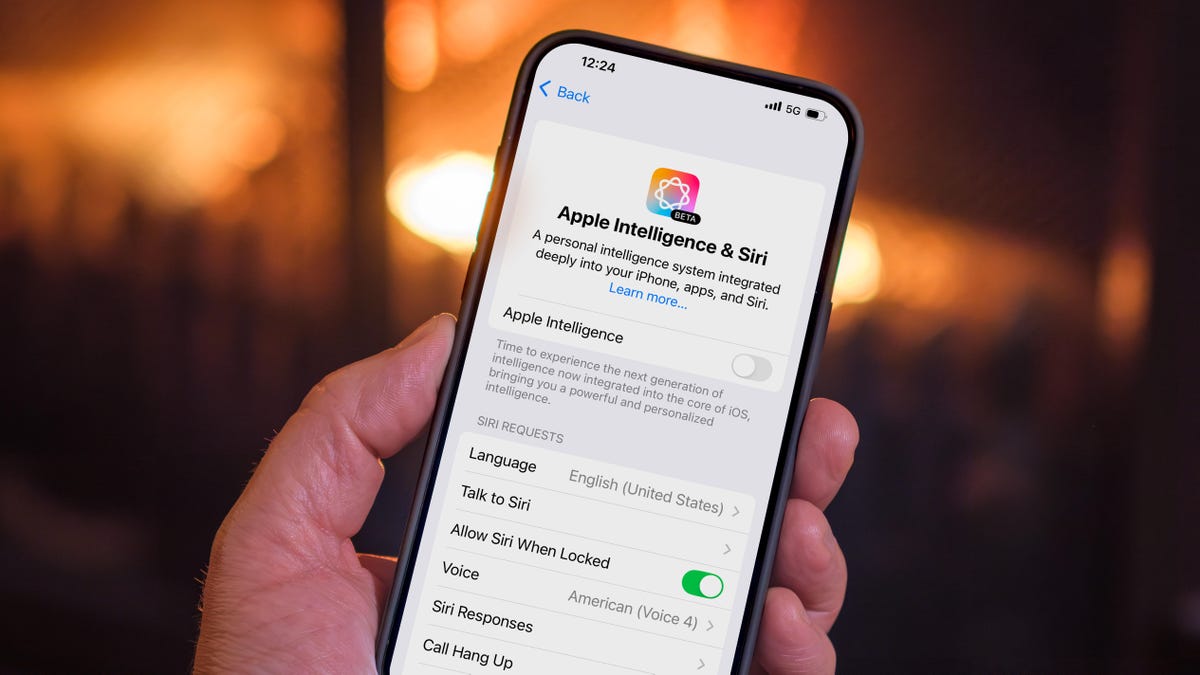
To disable the suite across iPhone, iPad, or Mac, open Settings (or System Settings on a Mac) and select Apple Intelligence & Siri. Flip the Apple Intelligence switch off and confirm the action. This disables all AI‑related functions, though some residual tools—such as the Clean Up feature in Photos—may persist because they download resources the first time they’re used.
Disabling Individual Features
For users who want to keep certain tools while disabling others, each app offers its own Apple Intelligence settings. For example, to stop message notification summaries, go to Settings > Apps > Messages and toggle off Summarize Messages. Writing Tools, which appear as a contextual option when text is selected, can only be disabled system‑wide. Almost every app also includes a Learn from the Apple Intelligence & Siri menu, allowing users to prevent the AI from tracking usage for suggestions.
Using Screen Time to Restrict AI Functions
Screen Time, typically used for parental controls, also provides granular control over Apple Intelligence. Navigate to Settings > Screen Time > Content & Privacy Restrictions, enable the restrictions if needed, then select Intelligence & Siri. From there, users can allow or block Image Creation (Image Playground, Genmoji), Writing Tools, and the ChatGPT Extension, which handles requests beyond the built‑in capabilities.
Precautions Before Updating
If a device has not yet upgraded to the latest OS version, it’s advisable to back up data before making changes. Once updated, the hidden features and controls described above become accessible, allowing users to tailor the AI experience to their preferences.
Usado: News Factory APP - descubrimiento de noticias y automatización - ChatGPT para Empresas