How to Disable Apple Intelligence and Manage Its Storage Impact
Mixed Reception to Apple Intelligence
Since its rollout with iOS 18.1, Apple Intelligence has generated both enthusiasm and hesitation. A CNET survey found that only 19% of U.S. smartphone owners are choosing to upgrade their devices to take advantage of the AI features, while a ZDNET/Aberdeen poll revealed that most U.S. adults do not plan to use most of the new capabilities, with just 8% willing to pay extra for them. Users who do engage with the suite tend to favor specific tools, such as AI‑assisted photo editing, which 58% of respondents said would be valuable.
Other research underscores the reluctance: a SellCell poll reported that 73% of Apple users believe AI adds little to no value, and a separate CNET survey indicated that 25% of smartphone owners are not interested at all. Concerns range from storage consumption—features like Image Playground, Genmoji, and message summaries can use up to 7 GB of internal space—to privacy and the occasional inaccuracy of AI‑generated summaries.
Why Users Choose to Turn Off the Service
Beyond perceived limited benefit, practical considerations drive many to disable Apple Intelligence. Devices nearing their storage limits may struggle when the AI suite occupies several gigabytes. Even when storage is not a pressing issue, some users simply prefer not to engage with features they consider distracting or unnecessary.
Turning Off Apple Intelligence Entirely
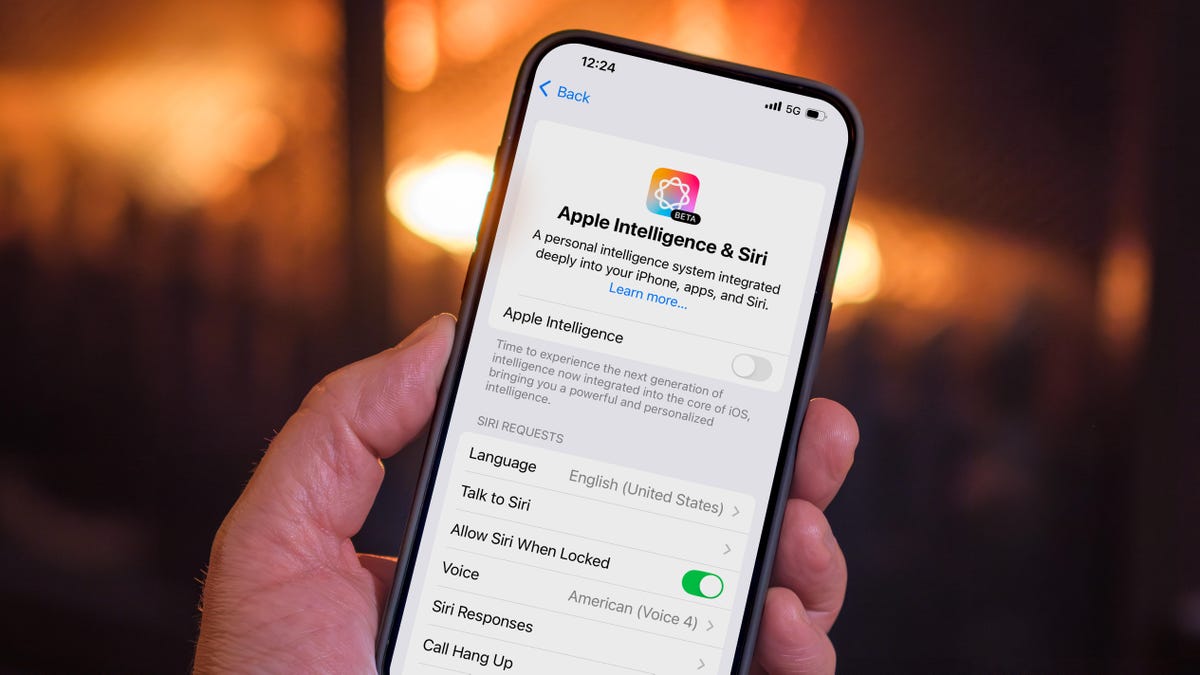
Apple offers a straightforward toggle to disable the entire AI suite. On iPhone or i‑Pad, users navigate to Settings → Apple Intelligence & Siri and switch off the Apple Intelligence option, confirming the choice in the dialog that appears. Mac users follow a similar path in System Settings. Once disabled, the system no longer runs the AI models, and any space taken up by inactive data can be reclaimed if the device needs additional storage. For example, a user observed the Apple Intelligence footprint drop from 5.89 GB to 2.87 GB after filling the device and forcing iOS to purge unused data.
Selective Deactivation of Individual Features
For those who appreciate certain tools but not others, Apple allows granular control. Specific features can be turned off within the settings of the corresponding apps. To stop message summaries, users go to Settings → Apps → Messages and disable Summarize Messages. Other components, such as Writing Tools, are tied to the system‑wide AI toggle and cannot be disabled independently.
Using Screen Time to Restrict AI Functions
Screen Time, typically used for parental controls, also provides a method to limit Apple Intelligence. Within Settings → Screen Time → Content & Privacy Restrictions, users can turn on the restriction option and then navigate to Intelligence & Siri. From there, they can allow or block Image Creation (including Image Playground and Genmoji), Writing Tools, and the ChatGPT Extension.
Monitoring Storage Usage
To see how much space Apple Intelligence occupies, users open Settings → General → iPhone (or iPad) Storage → iOS (or iPadOS). The AI data appears in the iOS Storage list even after the service is turned off, but the system will reclaim the space when needed.
Conclusion
Apple Intelligence offers powerful AI capabilities, yet its adoption is far from universal. Users concerned about storage, privacy, or the relevance of specific features have multiple pathways to disable the service entirely or fine‑tune its components. By leveraging the built‑in settings and Screen Time controls, iPhone, iPad, and Mac owners can shape their device experience to match personal preferences while ensuring optimal use of storage resources.
Used: News Factory APP - news discovery and automation - ChatGPT for Business